Viewing a CI#
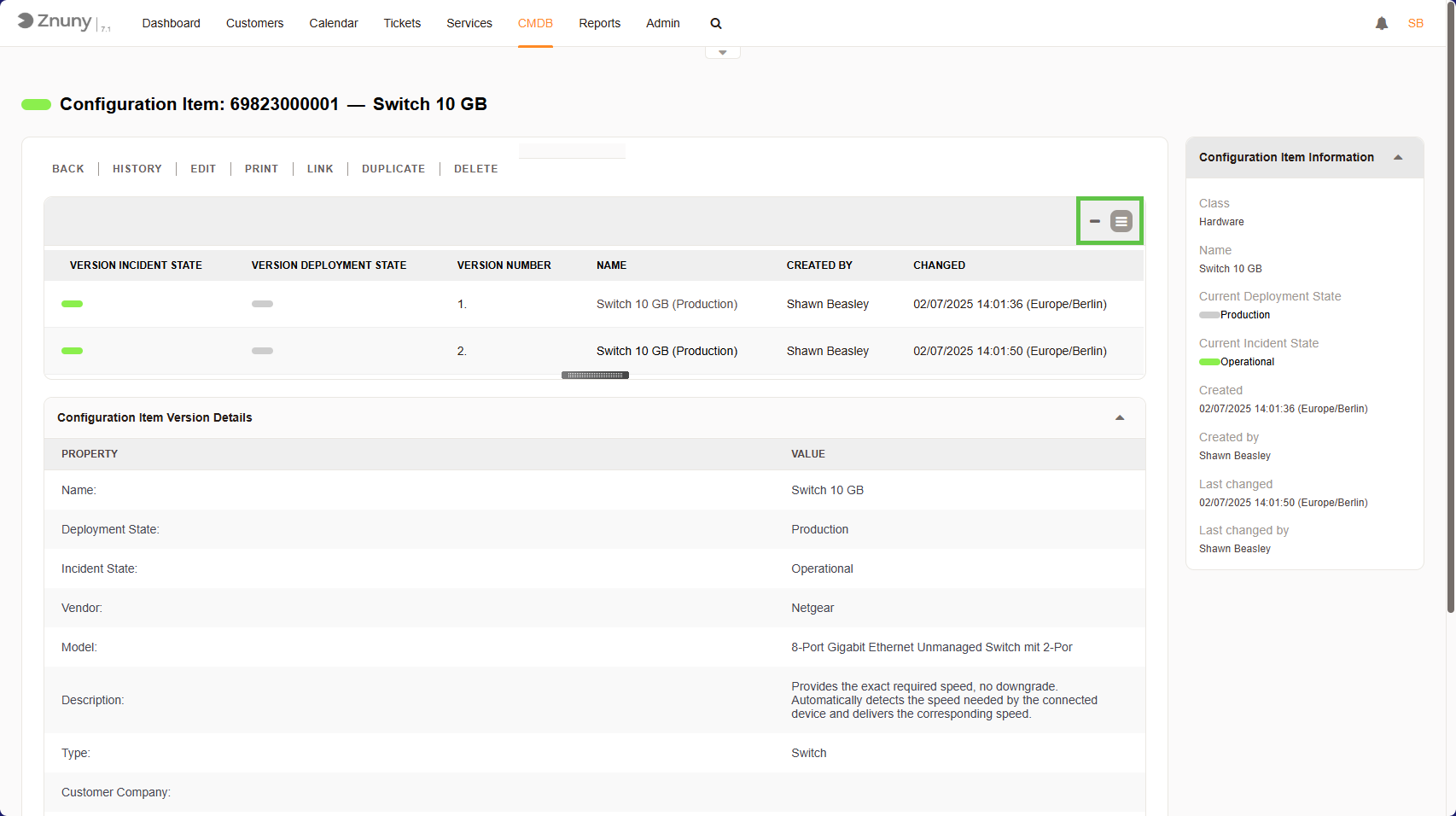
This screen provides detailed information about a specific Configuration Item (CI) in the CMDB (Configuration Management Database). Here, you can view, edit, track changes, and manage the lifecycle of the selected CI.
Viewing a CI#
What You Can See Here#
The page is displaying details for Switch 10 GB, a hardware item with the unique ID 6982300001.
Main Sections#
CI Status Information (Top)
Current Incident State: Operational (working fine, no issues).
Current Deployment State: Production (currently in use).
Class: Hardware (categorized as an IT asset).
Created and Last Changed: Separate fields show who created the CI and when, and who last changed it and when.
CI Version History (Middle)
Tracks different versions of this CI.
Each version includes: - Version Number (1, 2, etc.). - State at that time (Incident and Deployment states). - Timestamp & Author of the last change.
Note
Switch between showing only the newest version and showing all versions using the “Show one version” / “Show all versions” links above the version tree.
Configuration Item Version Details (Bottom)
Technical details about the CI, including: - Vendor: Netgear. - Model: 8-Port Gigabit Ethernet Unmanaged Switch. - Description: Provides exact required speed, no downgrade. - Type: Switch.
Important
The available attributes are configured by the system administrator. See Configuration Item Definitions for the full reference.
What You Can Do Here#
In the CI Menu, you have several actions:
BACK - Return to the CI list.
HISTORY - View all changes made to this CI.
EDIT - Modify details such as the vendor, description, or state. (RW permissions required)
PRINT - Generate a printable version of this CI.
LINK - Create relationships with other CIs.
DUPLICATE - Clone this CI for quick creation of a similar one. (RW permissions required)
DELETE - Remove this CI from the system. (RW permissions required)
How You Can Use This Page#
Track Hardware/Software Assets - Keep records of network switches, servers, or applications.
Monitor Status Changes - Identify when a CI was moved to production, had an incident, or was retired.
Edit or Update Details - Change vendor, model, description, or link it to other ITSM processes.
Audit & Troubleshoot - If there are issues, check version history for past changes.